Merchant-facing articles / Tutorial
Why isn't your product showing on Instacart? A 9-step troubleshooting checklist
A product is in your inventory file but customers can't find it on Instacart. Work through nine checks, from processing delays to store ID mismatches, before you contact support.
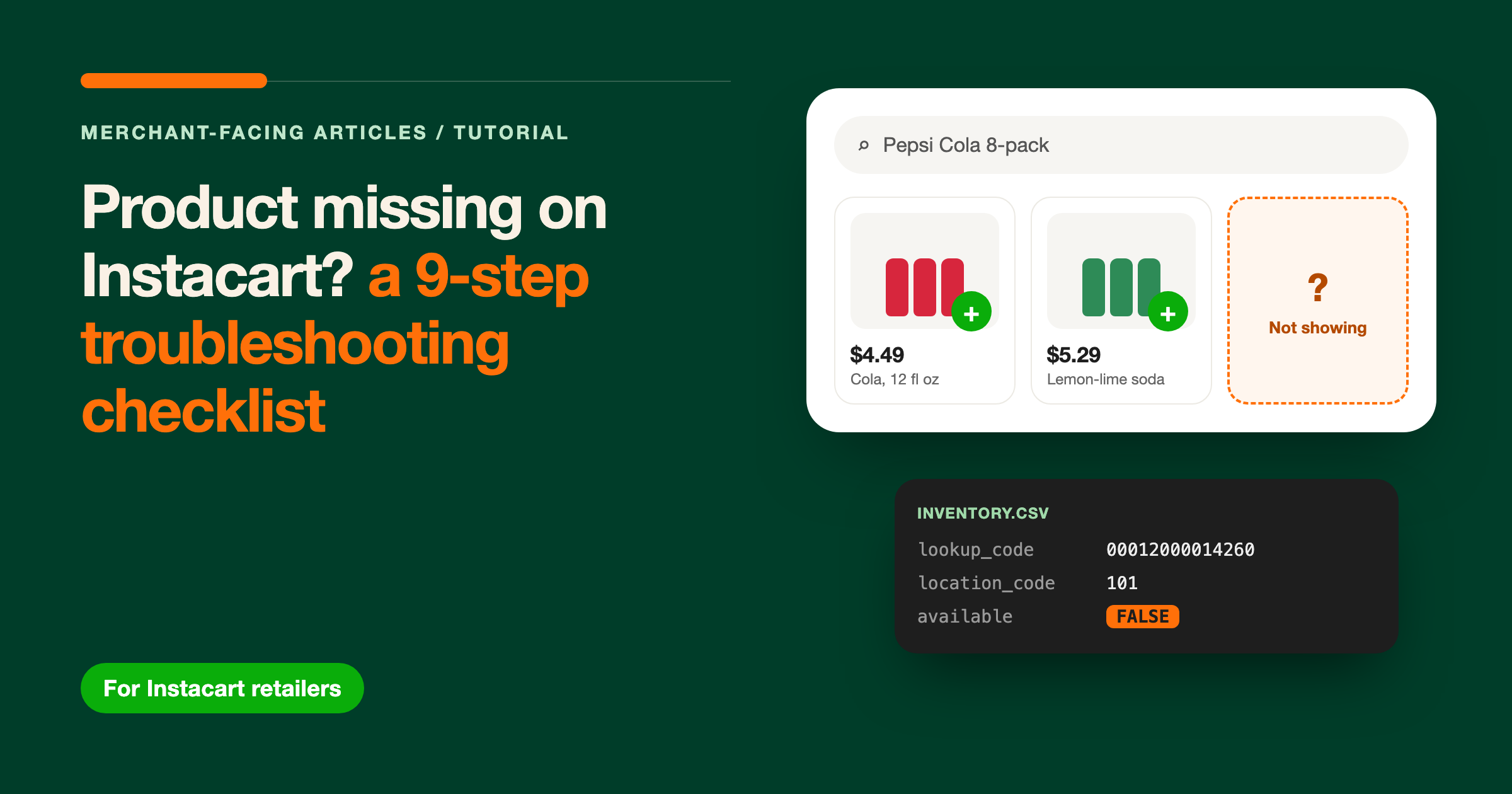
If a product is in your inventory file but customers can’t find it on Instacart, start by checking three common causes: processing delays, missing or incorrect inventory data, and store location mismatches. Work through the checklist below in order, starting with the quickest checks, to identify the issue and determine whether you need to contact Instacart for support.
Before you start: gather three things
Before working through the checklist, have the following information ready:
- The product’s lookup code (
lookup_code): The UPC or PLU used to identify the product in your inventory file. - The Store ID: The identifier for the store where the product should appear on Instacart.
- Your last file upload date and time: Include the time zone to help determine whether enough time has passed for Instacart to process your inventory update.
Having these details on hand will help you troubleshoot faster and provide the relevant information to Instacart if you need to escalate the issue.
The checklist: 9 reasons your products aren’t showing on Instacart
Work through these checks in order. If you find an issue, correct it before moving on to the next step.
1. ☐ Is it too soon?
Check: Compare the time of your last inventory file upload with Instacart’s standard processing times:
- Existing products: Most changes appear on your storefront within 90 minutes.
- Brand-new products: Products that Instacart has not previously encountered typically take 3 to 5 days to appear.
Fix: If you’re still within the expected processing window, allow more time for the update to appear. When introducing brand-new products, send your inventory data 3 to 5 days before your planned launch date.
Example: If you uploaded a price change at 9 a.m., it will typically appear by 10:30 a.m. However, a brand-new product uploaded on Monday may not appear until later in the week.
See Catalog inventory file FAQ for more information.
2. ☐ Did your upload go through?
Check: Verify that you uploaded your inventory file to the correct directory on Instacart’s SFTP server and received a successful upload confirmation.
Fix: Upload your file to the appropriate directory:
- If you use one inventory file for multiple stores, upload it to the
inventory-filesfolder. - If you use separate inventory files for each store, upload each file to its corresponding store subdirectory.
If the upload failed, retry it and verify that you receive a confirmation message.
Example: If you maintain separate inventory files for stores 101 and 102, uploading store 101’s file to store 102’s subdirectory could prevent the intended store from receiving the correct inventory update.
See SFTP access for upload instructions.
3. ☐ Are all the required columns filled in?
Check: Open your most recent inventory file, locate the missing product using its lookup_code, and check that you’ve provided the required catalog information. Missing mandatory data can prevent a product from appearing on your storefront.
| Required column | What to provide | Example |
|---|---|---|
available | Purchase availability | TRUE |
brand_name | Product brand | Pepsi |
cost_price_per_unit | Price per selling unit | 5.99 |
cost_unit | How the product is sold | each |
location_code | Store ID | 101 |
lookup_code | Complete UPC or PLU | 00012000014260 |
name | Product name | Pepsi Cola |
size | Individual unit size | 12 |
size_uom | Unit of measurement | fl oz |
unit_count | Number of units in a pack | 8 |
Fix: Complete any missing required fields, correct invalid values, and upload the corrected inventory file. You don’t need to notify Instacart separately when submitting a correction file through SFTP.
Example: If you’re introducing an eight-pack of 12-fluid-ounce soda cans, provide 12 for size, fl oz for size_uom, and 8 for unit_count.
Some product attributes are only required when creating a product for the first time. Additional requirements may also apply depending on your location and product category.
See Minimum catalog requirements for the complete specifications.
4. ☐ Is available set to TRUE?
Check: Find the product’s row for the affected store and review its available value. This field determines whether the product is available for purchase.
Fix: If the product is in stock and available for purchase, set available to TRUE and upload the updated file. You can also update product availability through Instacart Platform Portal.
If your file includes the in_assortment column, check that value too. Setting it to FALSE hides the product from search results.
Example: A product that recently came back into stock may still have available set to FALSE in your inventory file, preventing customers from purchasing it.
See Availability requirements for additional availability settings.
5. ☐ Does location_code match the Store ID exactly?
Check: Compare the location_code in your inventory file with the Store ID you configured in Instacart Platform Portal. Look for extra spaces, differences in capitalization, missing leading zeros, and typos.
Fix: Update the location_code to match the registered Store ID and upload the corrected file. If you operate multiple stores, verify that the product is included in the inventory data for every location where it should be available.
Example: If your registered Store ID is STORE001, use that exact value rather than STORE01 or STORE001 (with a trailing space).
6. ☐ Has Excel broken your UPC?
Check: Open your inventory file and inspect the lookup_code column. Excel can automatically interpret product codes as numbers, removing leading zeros or converting long codes to scientific notation.
Fix: Format the column as text before entering or importing product codes.
In Microsoft Excel:
- Select the
lookup_codecolumn. - Right-click and select Format Cells.
- Under Category, select Text.
- Select OK.
- Restore any affected codes from your original inventory data.
- Save the file and verify that the exported values are correct.
If you’re importing a CSV file into Excel, set the column’s data type to Text during import to prevent automatic conversion.
Example:
| Incorrect format | Correct format |
|---|---|
1.2E+12 | Complete product code as text |
1200000231 | 0001200000231 |
Changing the cell format alone won’t restore leading zeros or digits that Excel has already removed. Always retrieve the original product code and include its check digit.
7. ☐ Did you change your file format without telling Instacart?
Check: Compare your latest inventory file with a previously working version. Look for changes to column names, data fields, delimiters, file encoding, or file type.
Unannounced changes can cause processing failures or result in new fields being ignored.
Fix: Restore your previously approved file format. If you need to change the format or introduce new fields, submit a support request so Instacart’s Catalog team can review the changes and update your ingestion configuration.
Example: If you rename the lookup_code column to product_code without coordinating the change with Instacart, your file may no longer be processed correctly.
See File requirements for supported file formats and specifications.
8. ☐ Is the product allowed?
Check: Verify whether the missing product falls into a prohibited or restricted product category. Instacart does not display prohibited products, even when you include them in your inventory file.
Examples of prohibited products include gift cards, tobacco products, lottery tickets, and fireworks. Restrictions may vary by location.
If your inventory file contains alcoholic products, check that it includes these additional columns:
| Column | What to provide |
|---|---|
alcoholic | Whether the product contains alcohol |
alcohol_by_volume | Alcohol percentage (ABV) |
alcohol_type | Alcohol category, such as beer, wine, or spirits |
Fix: Remove prohibited products from your inventory file. For eligible alcoholic products, provide the appropriate alcohol attributes and confirm with your Instacart representative that your store is authorized to sell alcohol.
Example: If a bottle of wine is missing from your storefront, verify that alcoholic is set to TRUE, that the required alcohol details are present, and that your store is approved for alcohol sales.
See Prohibited products and Alcohol requirements for more information.
9. ☐ Is the product showing, but with the wrong name or size?
Check: Determine whether the product is missing entirely or appears with incorrect product information. Instacart treats attributes such as product name, brand name, and size differently from regularly updated attributes such as price and availability.
Once a product is created, these attributes cannot be changed through subsequent inventory file uploads.
Fix: The appropriate correction method depends on the product type:
- Private label and in-house products: Update the relevant attributes through Instacart Platform Portal.
- National brand products: Submit a support request to investigate incorrect product information. Instacart typically sources these attributes from content service providers (CSPs) working with brand partners.
Example: If your private label granola appears as a 250 g package instead of a 500 g package, updating the size column and uploading another inventory file won’t correct the existing listing. Update the product information through Instacart Platform Portal instead.
See Product information pipeline to understand how Instacart sources and prioritizes product information.
Troubleshooting flowchart: Why isn’t your product showing on Instacart?
Use this flowchart to narrow down the cause of a missing product and identify your next step.
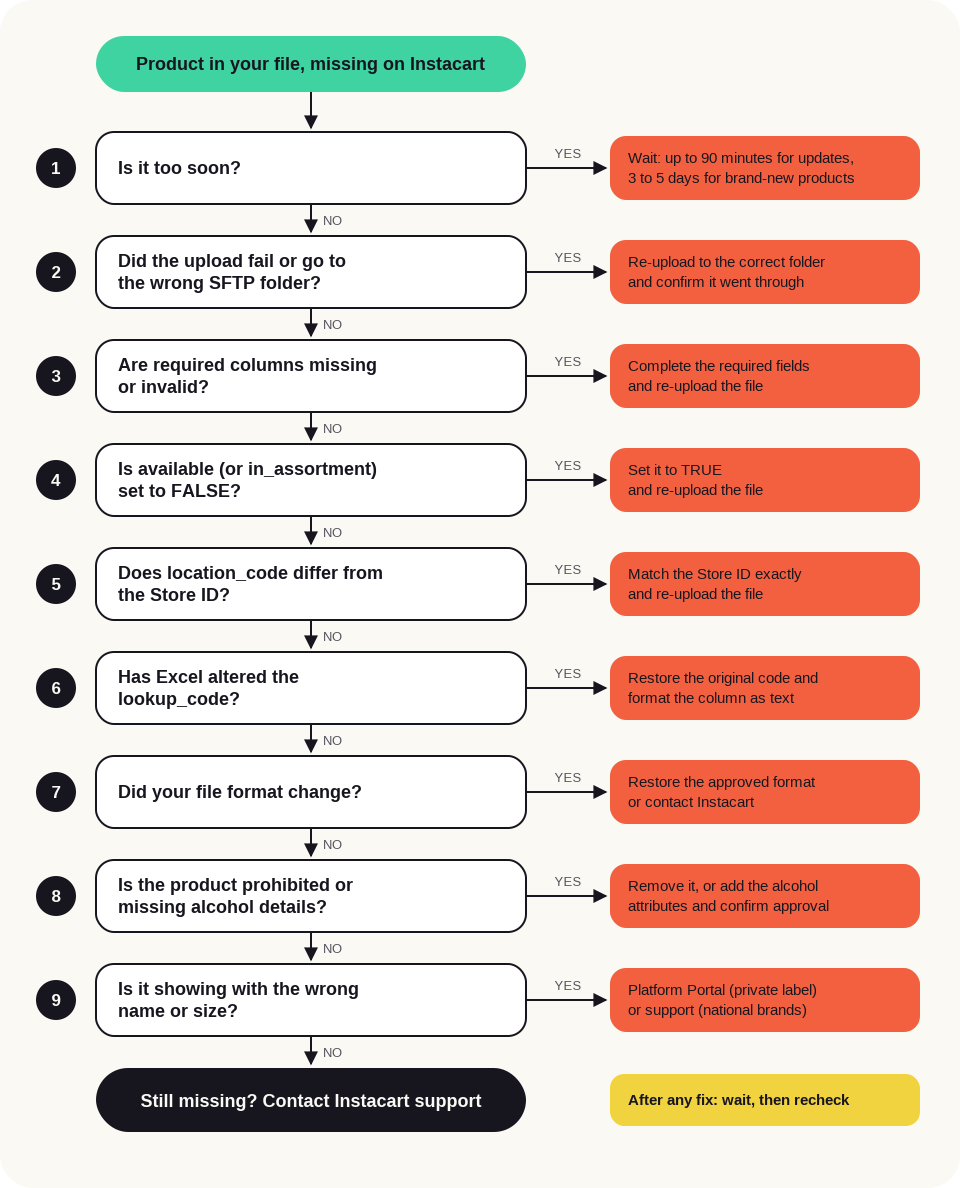
After applying a fix, allow the appropriate processing time and check your storefront again. If the product is still missing, continue through the remaining checks.
Still missing? Contact Instacart
If you’ve worked through the checklist and your product still doesn’t appear after the expected processing window, contact Instacart support. Providing the following information upfront can help the support team investigate your issue without unnecessary back-and-forth:
- The product’s lookup code (
lookup_code). - The Store ID where the product should appear.
- The name of your most recently uploaded inventory file.
- The date and time of your last upload, including the time zone.
- A screenshot of the affected product’s row in your inventory file, including the column headers.
You can use the following template when submitting your support request.
Hi Instacart Support,

A product in my inventory file is not appearing on Instacart. I've completed the troubleshooting checklist and allowed the expected processing time, but the issue persists.

Here are the product and inventory file details:

Product name: [Product name]
Lookup code: [UPC or PLU]
Store ID: [Store ID]
File name: [Inventory file name]
Last upload: [Date, time, and time zone]
Troubleshooting steps completed: [Brief description]

I've attached a screenshot of the affected product's row in my inventory file, including the column headers.

Could you investigate why this product is not appearing and advise on the next steps?

Thank you.
Preventing missing products
A few routine inventory management practices can help prevent missing products and reduce the time you spend troubleshooting:
- Automate daily inventory uploads. Schedule automatic file uploads to keep your product availability, pricing, and inventory information up to date.
- Submit new products ahead of launch. Send new product data 3 to 5 days before your planned launch date to allow sufficient processing time.
- Maintain a consistent file format. Use the same approved column names and file structure across all inventory uploads. Coordinate any changes with Instacart before implementing them.
- Perform a weekly spot-check. Select 10 products from your inventory file and verify that they appear on Instacart with the correct name, size, price, and availability. Include recently added products and products from different store locations, where applicable.
These practices can help you catch inventory and catalog issues before they affect your customers’ shopping experience.
Quick-reference table
Print this table and keep it handy for troubleshooting missing or incorrectly displayed products on Instacart.
| Symptom | Likely cause | Fix |
|---|---|---|
| A recently updated product isn’t showing | Inventory update is still processing | Allow up to 90 minutes for the update. |
| A brand-new product isn’t showing | New product creation is still processing | Allow 3 to 5 days for processing. |
| Products are missing after a file upload | Failed upload or incorrect SFTP folder | Verify the upload confirmation and folder location. |
| A specific product is missing | Required fields are missing or invalid | Complete the required fields and reupload. |
| An in-stock product is unavailable | available is set to FALSE | Set available to TRUE and reupload. |
| A product doesn’t appear in search results | in_assortment is set to FALSE | Set in_assortment to TRUE, if applicable. |
| A product appears at one store but not another | Incorrect or missing location_code | Match the Store ID exactly and verify store-level inventory. |
| A product code contains scientific notation or missing zeros | Excel has altered the product code | Restore the original code and format the column as text. |
| Products disappear after a file format change | Unapproved file structure or column changes | Restore the approved format or contact Instacart. |
| An alcoholic product is missing | Missing alcohol attributes or store authorization | Complete the required fields and verify authorization. |
| A restricted product is missing | Product eligibility restrictions | Review Instacart’s prohibited product guidelines. |
| A product displays the wrong name or size | Existing catalog information is incorrect | Update the product through Platform Portal or contact support, as applicable. |
| A product is still missing after all checks | Issue requires further investigation | Contact Instacart with the product and upload details. |